
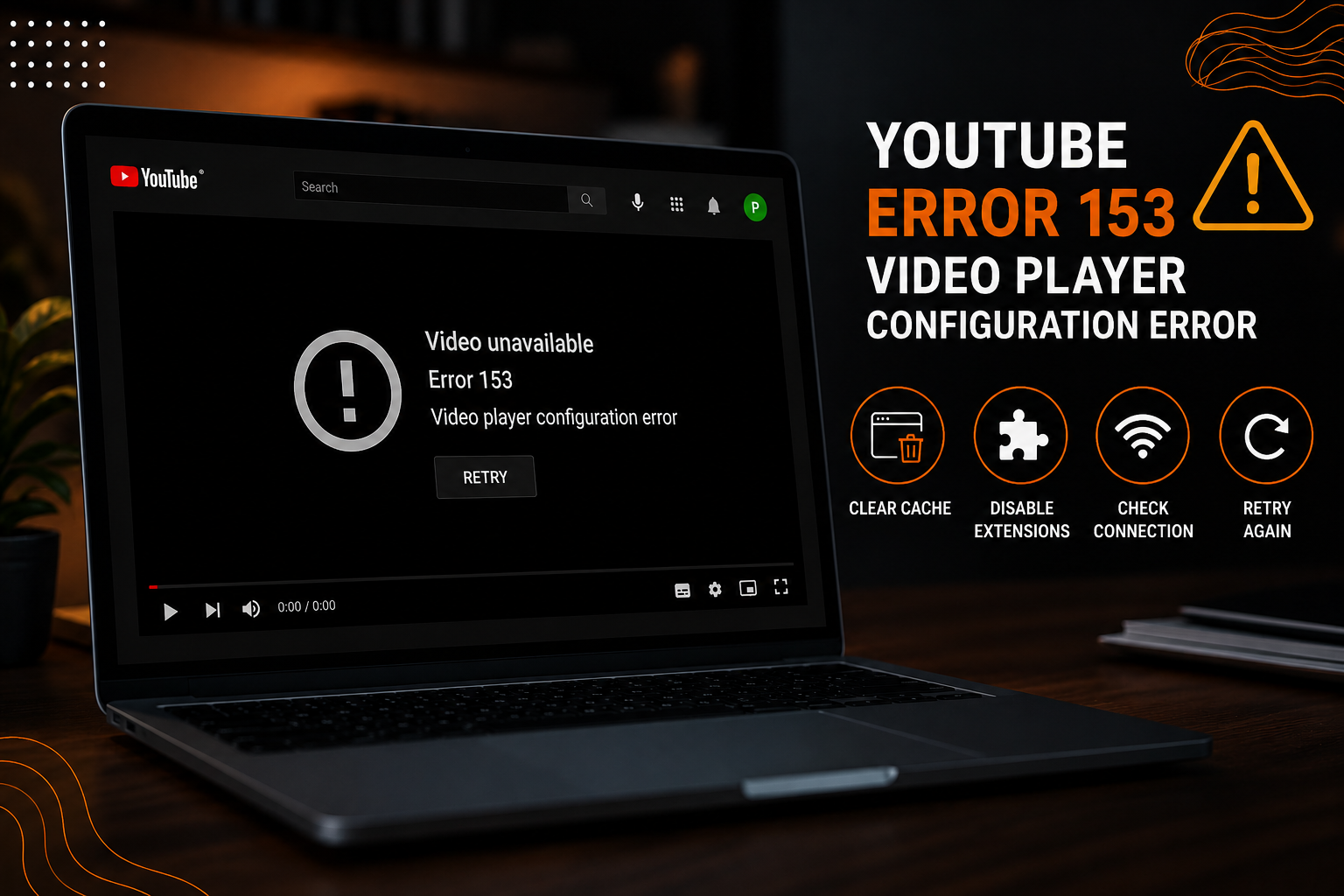
Have you ever been reading a helpful blog post, clicked on a video to learn more, and got hit with a frustrating black screen instead of the play button? If so, you’ve probably run into the youtube error 153 video player configuration error. It’s one of those bugs that can completely ruin your experience online.
Whether you are a regular person trying to watch a quick tutorial or a business owner trying to keep visitors happy on your website, this error stops everything in its tracks. Let’s look at why this annoying glitch happens and exactly how you can get your videos playing smoothly again without ripping your hair out.
What Is YouTube Error 153 Video Player Configuration Error?
To put it in the simplest terms possible, YouTube Error 153 is a communication breakdown. When you watch a video directly on YouTube’s main website or app, everything usually works fine. But when a website owner displays a YouTube video inside their own webpage which we call “embedding” a video your web browser has to talk to YouTube’s servers to load that video player.
Think of your browser like a customer placing an order at a restaurant. When you click play, your browser sends an order slip to YouTube’s digital kitchen. This order slip needs to have basic information on it, like what video you want to watch and where you are watching it from.
If YouTube’s servers receive that order slip but notice that crucial information is missing, unreadable, or blocked, they get confused. Instead of sending back the beautifully playing video, they send back a “Video Player Configuration Error.” They are essentially saying, “I can’t load this player because your browser isn’t telling me who you are or where you are asking from.”
For business owners and website managers, this is a massive headache. If visitors come to your site and see broken gray or black boxes instead of your high quality video content, they will leave almost instantly. In the digital marketing world, this is called a “bounce.” When users bounce off your website because your features are broken, search engines notice. Over time, this can quietly damage your website’s search engine optimization (SEO) rankings and organic engagement.
What Causes YouTube Error 153 Video Player Configuration Error?
Why did this error suddenly start showing up for so many people? The short answer is that Google recently made its privacy and security rules much tighter. Historically, YouTube didn’t care too much about how or where its videos were loaded. But now, YouTube strictly demands to see a piece of digital ID called a Referrer Header. This is just a tiny piece of background data that tells YouTube, “Hey, this video is currently trying to play on professionalseoservices.company.”
If your web browser, your computer network, or the website’s code hides this digital ID card, YouTube denies the request and throws Error 153. Let’s break down the three main reasons why this happens.
Browser cache and cookie conflicts
Your web browser is constantly trying to save you time. To load your favorite websites faster, it saves temporary copies of images, scripts, and website cookies on your local hard drive. This is called your browser cache. The trouble starts when YouTube updates its video player code on their servers, but your browser tries to load a video using an old, stale version of the player code stored in your cache.
These two versions clash. The old player configurations conflict with YouTube’s new security checks, and the player simply fails to load.
Corrupted browser extensions
We all love browser extensions. Whether you use ad blockers, privacy guards, or coupon finding extensions, they make life online much easier. However, these extensions work by actively reading and changing the code on the web pages you visit.
Many popular ad blockers and privacy shields are incredibly aggressive. To protect your identity, they will actively block or “strip” the Referrer Header we mentioned earlier. When they hide this information from YouTube, they accidentally trigger Error 153 because YouTube can no longer verify that the video request is safe and legitimate.
Network or DNS configuration issues
Sometimes the problem isn’t your browser at all; it’s the highway your data travels on. Your internet connection relies on something called the Domain Name System (DNS). Think of DNS as the phonebook of the internet it translates website names (like youtube.com) into physical IP addresses that computers can understand.
If your local router or your Internet Service Provider (ISP) has a cluttered or outdated DNS cache, your computer might try to connect to an offline or outdated YouTube server. When the data packet gets lost or delayed along the way, the video configuration file times out, leaving you with a broken black player box.
How to Fix YouTube Error 153 on a Web Browser
If you are using a desktop computer or laptop, fixing this issue is usually quite simple. It is all about cleaning out the digital cobwebs in your web browser. Try these steps in order.
Clear cache and cookies
This is the “turn it off and on again” of the web world, and it resolves a massive percentage of video playback issues. By clearing your cache, you force your browser to download a fresh, perfectly aligned copy of YouTube’s latest configuration player files.
- Open your browser settings: On Chrome, Edge, or Firefox, click the three dots or lines in the top right corner and click Settings.
- Find your privacy options: Search for “Clear browsing data” or “Privacy & Security.”
- Select your timeframe: Always choose All time to make sure you get rid of every single piece of corrupted data.
- Check the boxes: Make sure “Cookies and other site data” and “Cached images and files” are both checked.
- Click Clear: Hit the clear button, close your entire browser, and then reopen it. Try loading the video again.
| Browser | Quick Shortcut to Clear Cache |
| Google Chrome | Ctrl + Shift + Delete (Windows) or Cmd + Shift + Delete (Mac) |
| Mozilla Firefox | Ctrl + Shift + Delete (Windows) or Cmd + Shift + Delete (Mac) |
| Microsoft Edge | Ctrl + Shift + Delete (Windows) or Cmd + Shift + Delete (Mac) |
| Apple Safari | Option + Cmd + E (to empty cache directly) |
Disable extensions and ad blockers
Because ad blockers and privacy extensions are a prime suspect for Error 153, you need to run a quick test to see if they are the problem.
- Try Incognito Mode: Open an Incognito or Private window in your browser. By default, this mode runs without any of your extensions active.
- Test the video: Head back to the page with the broken video inside the Private window.
- Did it work? If the video plays perfectly in private, one of your extensions is definitely blocking YouTube’s referrer data.
- Find the culprit: Go to your browser’s extensions page and turn them off one by one, refreshing the video page each time. Once you find the extension causing the block, you can go into its settings and add the website to its “allowlist” or exclusion list so it stops blocking the media player.
Update or reset your browser
If your web browser hasn’t been updated in a while, it might not support the modern video configurations Google relies on.
- Update your browser: Go to your browser’s settings, click About (e.g., About Google Chrome), and your browser will automatically look for and install any pending updates.
- Toggle Hardware Acceleration: This is a feature that lets your web browser use your computer’s graphics card to play videos smoothly. Sometimes, graphic card software clashes with video players. Go to your browser’s advanced settings, search for “Hardware Acceleration,” turn it off, restart your browser, and see if that fixes the video player.
How to Fix YouTube Error 153 on Android and iPhone
If you are getting this error on your phone or tablet, it usually just means the YouTube app has run out of working memory or its internal files got temporarily mixed up. The absolute quickest way to fix this on either an Android or an iPhone is to completely shut down the app. Don’t just go back to your home screen actually close it out of your phone’s active memory.
On an iPhone, swipe up from the bottom of your screen and flick the YouTube app window upward to close it completely. On an Android, go into your phone’s main Settings, tap on Apps, find YouTube, and tap Force Stop to make sure it stops running in the background. Often, simply reopening the app after doing this will get your videos playing again right away.
If that doesn’t do the trick and you are using an Android phone, you probably need to clean out the app’s cluttered temporary files. To do this, go back to your Settings, tap Apps, select YouTube, and then tap Storage. From there, tap Clear Cache. Be careful not to tap “Clear Data” by mistake, or the app will log you out and you might lose any videos you downloaded to watch offline.
While you are at it, open up the Google Play Store and search for an app called Android System WebView. This is a background tool your phone uses to load web videos inside other apps, and keeping it updated is crucial for stopping playback errors.
For iPhone users, the cleanup process is slightly different because Apple doesn’t give you a simple “clear cache” button. Instead, you can perform a handy trick called “offloading” the app. Go to your iPhone’s Settings, tap General, select iPhone Storage, find YouTube in the list, and tap Offload App. This is a great feature because it sweeps away all the glitched, temporary files that are causing the playback error without deleting your personal settings or account logins.
Once the phone finishes clearing the clutter, simply tap Reinstall App on the very same screen, and you will have a fresh, clean YouTube app ready to stream perfectly.
Check Whether the Problem Is With YouTube or Your Internet Connection
Sometimes, you can spend hours resetting your settings when the problem isn’t actually on your end at all. It is always smart to do a quick double check to see if the issue is local or global.
Test on another device
Grab a different device like your smartphone if you are on a laptop and connect it to the exact same Wi-Fi network. Try loading the same video.
- If the video plays perfectly on your phone, then your Wi-Fi is fine, and the issue is restricted to your computer’s browser or settings.
- If the video is broken on every single device connected to your Wi-Fi, the issue is either your router, your internet service provider, or YouTube itself.
Check YouTube server status
Before changing any technical settings on your router, check a website like DownDetector or look up “YouTube down” on social media. If YouTube’s central servers or API systems are having an outage, Error 153 will show up globally. If there is an outage, you don’t have to do anything except sit back and wait for YouTube’s engineering team to patch the issue.
How Browser Settings Can Trigger YouTube Error 153
Most of us never touch our browser’s deep privacy settings, but default security updates can sometimes go a bit too far. Modern browsers like Brave, Firefox, and Safari now come with built in “Strict Tracking Protection.” While this is great for keeping advertisers from following you around the web, it can be bad news for video players. Strict tracking protection often blocks the browser from sending any referrer data whatsoever.
If your browser is configured to block cross site tracking completely, YouTube might view your incoming connection as “anonymous” or “unidentified” and refuse to hand over the video configuration file. To fix this:
- Look for a little shield or lock icon right next to the website address in your browser bar.
- Click that icon.
- Turn down the tracking protection from “Strict” to “Standard” or temporarily turn off the shields for that specific website to see if the video player comes back to life.
Can VPNs, Proxies, or Firewalls Cause YouTube Error 153?
Yes, they absolutely can. Virtual Private Networks (VPNs) and firewalls are built to protect your data by encrypting your internet traffic and hiding your physical location. However, this extra layer of security can sometimes confuse media streaming pipelines.
- IP Address Flagging: VPNs work by sharing a single server IP address with hundreds of different users. If someone else on your VPN server was violating YouTube’s terms of service, YouTube’s security system might flag that IP address. When you try to load a video, YouTube blocks the player’s configuration file because it distrusts your connection.
- Packet Stripping: High security firewalls or corporate office networks use a process called “deep packet inspection.” This means they look closely at every piece of data entering or leaving the network. During this process, the firewall may strip out the Referrer Headers that YouTube needs to authorize the video play, resulting in Error 153.
If you are using a VPN, try turning it off completely or switching to a different server location. If you are on an office or school network, the network firewall may be blocking the embed player’s connection pathways, and you may need to use a mobile hotspot to bypass it.
Advanced Troubleshooting Methods for YouTube Error 153
If all the basic quick fixes haven’t worked and that annoying black screen is still there, it’s time to try a slightly more advanced trick. Don’t worry you do not need to be a tech genius to do this, and it only takes about thirty seconds.
We are going to “flush” your computer’s DNS cache. Think of this cache as a local map your computer uses to find websites on the internet. If YouTube updates its backend systems (its digital coordinates) but your computer is still trying to use its old, saved map, your browser gets lost and throws Error 153. Flushing this cache simply throws away that outdated map and forces your computer to ask for a brand new, completely accurate set of directions directly from YouTube’s servers.
For Windows: Doing this on Windows is incredibly simple. All you need to do is press the Windows Key + R on your keyboard at the same time to open up a tiny run box. In that box, type cmd and hit enter to open up your computer’s command prompt (the classic black window).
Once that window pops up, type in ipconfig /flushdns and press enter on your keyboard. You will instantly see a little message pop up on the screen telling you that your DNS resolver cache has been successfully flushed. Close the window, refresh your web browser, and try playing your video again.
For Mac: On a Mac, the process is just as quick but uses a slightly different tool. Start by opening up your Terminal app, which you can easily find by pressing Command + Spacebar to open Spotlight search and typing “Terminal.”
Once the Terminal window is open, copy and paste this command exactly as it is: sudo dscacheutil flushcache; sudo killall HUP mDNSResponder and hit your return key. Your Mac will ask you to type in your computer’s login password to authorize the change.
Don’t worry if you don’t see any letters or bullet points appearing on the screen while you type that is just a built in Mac security feature to hide your password, so just type it out anyway and hit enter. Once that is done, your computer’s digital map is completely refreshed and ready to go.
Change DNS servers
By default, your router uses the DNS phonebook provided by your local internet company. These are often slow and prone to errors. Switching to a world class public DNS like Google or Cloudflare can dramatically improve your connection speed and fix routing errors like Error 153.
Open your network settings: Go to your computer’s control panel and find your active internet connection properties.
Locate IPv4 settings: Double click on “Internet Protocol Version 4 (TCP/IPv4).”
Input new DNS addresses: Click “Use the following DNS server addresses” and enter these highly reliable, free numbers:
Google DNS: Primary: 8.8.8.8 | Secondary: 8.8.4.4
Cloudflare DNS: Primary: 1.1.1.1 | Secondary: 1.0.0.1
Save and restart: Click OK, close your settings, and restart your computer.
Reset network settings
If your computer is experiencing deep seated network glitches that are corrupting your data packages, you can completely reset your system’s network stack.
- On Windows, search your settings for “Network Reset” and click it. This will uninstall and reinstall all your network drivers, setting everything back to factory defaults. Your computer will reboot, and you will need to reconnect to your Wi-Fi network.
- On Mac, go to System Settings > Network, select your Wi-Fi, click the minus sign to delete it, and then click the plus sign to add it fresh.
How to Prevent YouTube Error 153 from Happening Again
No one wants to spend their free time troubleshooting video player errors. Setting up a few basic habits can keep your digital environment running smoothly and prevent Error 153 from cropping up in the future.
Keep Your Browser Clean: Make a habit of clearing your browser’s temporary files once a month. Many modern browsers have a setting that clears temporary files automatically every time you close the browser.
Avoid Using Too Many Extensions: It can be tempting to install three different ad blockers and four privacy extensions, but they will inevitably fight with each other and break web scripts. Pick one highly rated, lightweight ad blocker and remove the rest.
Keep Your Graphics Drivers Updated: Video rendering relies heavily on your computer’s hardware. Keeping your computer’s operating system and graphics drivers up to date ensures that the latest HTML5 standards play flawlessly on your screen.
When You Should Contact YouTube Support or Your Internet Provider
If you have tried every single step in this guide you cleared your cache, disabled your extensions, switched your DNS, and verified that the video works for others but still not for you the issue is likely a bigger routing block.
Your Internet Service Provider (ISP) might be experiencing a routing failure at one of their regional data hubs, or they might be accidentally throttling media traffic. Give your ISP a call and explain that you are experiencing severe packet loss and connection timeouts specifically when trying to load embedded media players. They can run a diagnostic on your line to clear any blockages on their end.
Alternatively, if you are a website owner and your visitors are constantly complaining about this error on your pages, the issue is likely your website’s internal security settings or an outdated video embed code. You may need to review your site’s Content Security Policy (CSP) and ensure that your web host is not stripping out necessary referrer headers.
Frequently Asked Questions
Is my computer infected with a virus if I see Error 153?
Absolutely not. Error 153 is purely a technical communication error between the webpage, your browser, and YouTube’s server. It has nothing to do with malware, viruses, or security breaches on your personal device.
Why does the video work directly on YouTube’s website but not on other blogs?
When you are directly on youtube.com, the website doesn’t need to ask for a “referrer header” because you are already on their platform. But when a blog embeds that video, YouTube needs to verify that the blog has permission to load their video player. If your browser settings block that verification, the video works on YouTube but breaks on the blog.
Can a website creator fix this error for their readers?
Yes! If you own the website, the easiest fix is to edit your video’s HTML embed code and add the attribute referrerpolicy="strict origin when cross origin" inside your <iframe> tag. This explicitly tells the browser to send the safety verification that YouTube’s servers are looking for.
Final Remarks
Having your work or relaxation interrupted by a media glitch is incredibly annoying, but YouTube Error 153 is highly fixable. At its core, the issue is just a simple misunderstanding over a digital ID card. A few simple fixes, like clearing old browser data, disabling problematic extensions, and checking your network connection, are often all it takes to get rid of YouTube Error 153 and start watching videos again.
Keep your browser updated and clean, and you won’t have to worry about this error stopping you again.